
Photo math on a Chromebook, right in the browser
Your worksheet is already on the Chromebook screen. Drag a box around the problem and read the full working beside it — no phone, no retyping.
- Installs from the Chrome Web Store like any extension, on personal and school Chromebooks.
- Works on anything in a Chrome tab: Google Classroom, Canvas, Docs, Drive PDFs, slides.
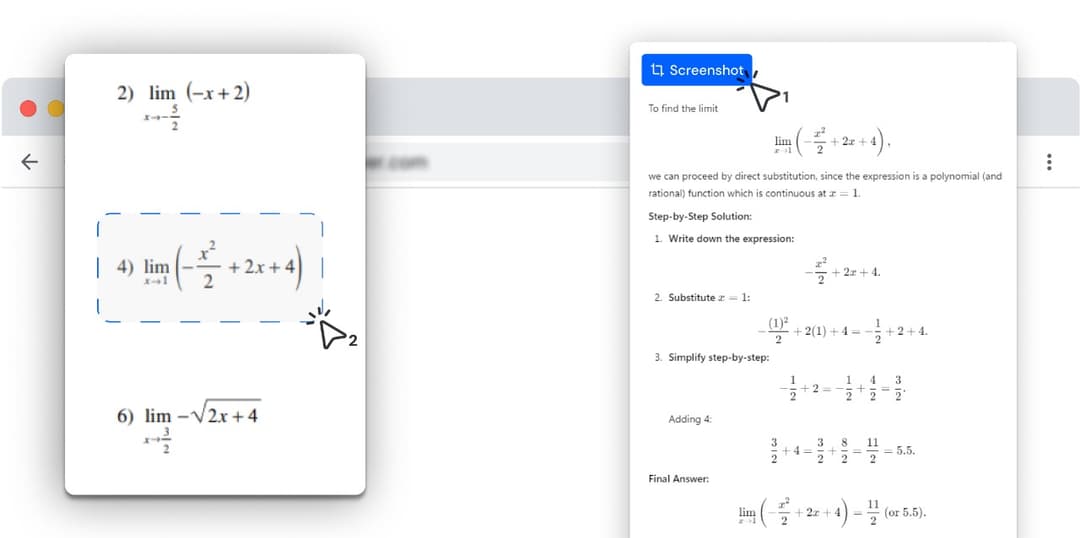
- Press Alt+C, drag a box, and the step-by-step solution opens in a side panel.
- No phone needed, which matters in classrooms where phones stay in the bag.
Photo Math Solver brings photo-based math solving to a Chromebook as a Chrome extension that reads problems straight off the screen.
Press Alt+C or click the extension, drag a box around a problem in any Chrome tab — a Google Classroom assignment, a Drive PDF, a quiz — and the method and every step appear in a side panel next to it.
It works on what Chrome can show, so a PDF has to be open in a Chrome tab rather than the Gallery app.
How it works on a Chromebook
- 1
Add it from the Chrome Web Store
One click, no Linux or Android setup. On a school Chromebook, the extension installs if your school allows extensions; if it does not, the store says it is blocked, or offers a request button when your admin has turned requests on.
- 2
Press Alt+C and drag a box
Alt+C is the default shortcut, and it works on any Chromebook keyboard. Draw the box around one problem or a few — a typed question, an equation in an image, a page of a PDF.
- 3
Read the steps in the side panel
The solution opens in Chrome’s side panel, so the problem stays visible on the left while you follow each step on the right. On a small Chromebook screen, that beats switching between windows.
Chromebook extension vs phone camera app
Both read math from an image. On a Chromebook the difference is where the problem already is: on the screen in front of you.
| Chrome extension (this) | Phone camera app | |
|---|---|---|
| A problem on the Chromebook screen | Drag a box around it in place | Photograph the Chromebook screen with a phone |
| Classrooms where phones are put away | Runs on the Chromebook you are already using | Needs the phone out |
| Getting the answer into Classroom or Canvas | Copy it from the side panel into the box beside it | Read it off the phone and retype it |
| School-managed device | Installs when the school allows extensions | Installs on a phone the school does not manage |
| Subjects it covers | Anything on screen — maths, physics, chemistry, biology | Whatever the app was built for |
| A paper worksheet on your desk | Needs a photo of it opened in a Chrome tab first | Point the camera at the page |
Try it on the problem you have open right now
Your worksheet is already on the Chromebook screen. Drag a box around the problem and read the full working beside it — no phone, no retyping.
Why phone math apps fit badly on a Chromebook
Photomath, the best-known photo math solver, is built for iOS and Android phones. It has no Chrome OS app and does not run in a browser, so on a Chromebook the usual workflow is to take out a phone and photograph your own screen.
Most Chromebook cameras face you, not the desk, so the laptop cannot fill in for the phone. And in many classrooms the Chromebook is the one device students are expected to have out.
Getting PDFs into Chrome
A Chromebook opens downloaded PDFs in the Gallery app by default. Gallery is not a browser tab, so the extension cannot see it. Right-click the PDF in Files, choose Open file, then Change default, then View, and PDFs open in Chrome from then on.
PDFs in Google Drive and Google Classroom already open in the browser, so they work as they are.
For PDFs saved on the Chromebook itself, Chrome asks for one extra setting: open chrome://extensions, choose Details under Photo Math Solver, and turn on Allow access to file URLs. Chrome keeps local files off-limits to every extension until you do.
On a school Chromebook
School Chromebooks are managed from the Google Admin console, and each school decides whether students can add extensions. Some allow any extension, some keep an allowlist, and some block everything but let students send a request from the Chrome Web Store page.
If the store says the extension is blocked, or offers a request instead of Add to Chrome, that is the school’s setting. Requesting it, or asking a teacher, is the way through.
What it can solve
Every subject below has its own page with formulas, worked examples and practice problems.
What it needs on a Chromebook
- Chrome on ChromeOS, with extensions allowed on the account you are signed in to.
- The problem visible in a Chrome tab: web pages, Google Classroom, Docs, Drive, PDFs opened in Chrome.
- Allow access to file URLs turned on, for PDFs and images saved on the Chromebook itself.
- A connection, because the working is generated when you snip.
Frequently asked questions
Photomath is a product of its respective owner. Photo Math Solver is an independent product and is not affiliated with it.