
Screenshot a math problem, get the steps beside it
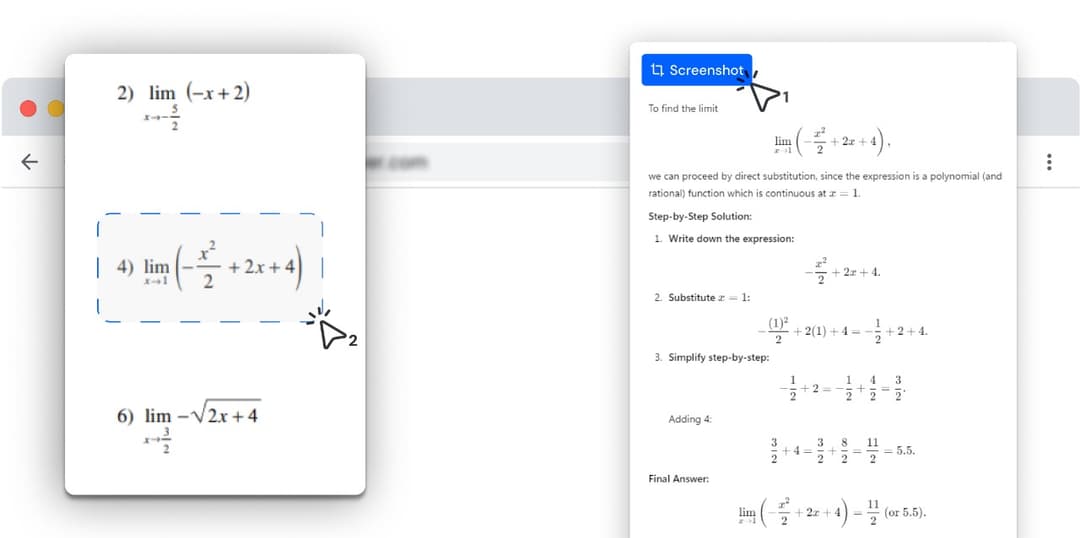
Press Alt+C, drag a box around the problem, and read the working beside it. The screenshot and the solving are one step.
- One shortcut takes the screenshot and solves it. No saving a file, no pasting it anywhere.
- Works on anything in a browser tab: quizzes, PDFs, images, slides, a paused lecture video.
- The steps stream into a side panel, so the problem stays in view while you read.
- Reads the screen as an image, so text that cannot be copied is no obstacle.
Photo Math Solver is a screenshot math solver built into Chrome as an extension, so taking the screenshot and solving it are a single step.
Press Alt+C, drag a box around a problem on the current tab, and the AI reads the selection and streams the method, each step and the answer into a side panel beside the page.
It captures what is inside the browser, so a problem in a desktop app has to be opened in a tab first.
How it works
- 1
Press Alt+C
Or click Screenshot in the side panel. The shortcut can be changed at chrome://extensions/shortcuts.
- 2
Drag a box around the problem
One problem, or a few that sit together. Include any diagram or table the question depends on, and leave out the rest of the page.
- 3
Read the steps
The solution streams into the side panel: which method applies, every step on its own line, and the answer. Press Alt+C again for the next one.
Screenshot extension vs screenshot and upload
The usual way to solve a screenshot is to take it with the system tool, then paste or upload it into a solver site or chatbot. This does the same in one step.
| Screenshot extension (this) | System screenshot + solver site | |
|---|---|---|
| Steps from problem to answer | Shortcut, drag, read | Snip, copy or save, open a site, paste or upload, wait |
| Where the working appears | Side panel next to the problem | Another tab or window |
| Problems you cannot copy as text | Read from the image | Read from the image |
| Subjects | Anything in the box — maths, physics, chemistry, biology | Depends on the site |
| Problems outside the browser | Open the file in a tab first | The system tool captures any window |
Try it on the problem you have open right now
Press Alt+C, drag a box around the problem, and read the working beside it. The screenshot and the solving are one step.
Why a screenshot beats typing the problem in
Math rarely survives being retyped or copied. Exponents drop onto the line, fractions lose their bars, and a quiz question drawn as an image has no text to copy at all. Retyping a long word problem or a matrix is slow and easy to get wrong.
A screenshot keeps the problem exactly as it looks, with the diagram, the units and the layout. The AI reads it the way you do, so nothing is lost between the question and the solver.
What you can screenshot
Online quizzes and homework in Canvas, Google Classroom, Moodle or any other site. PDFs open in Chrome’s viewer. Images, slides, Google Docs, and a frame of a paused lecture video. Photos of handwritten or printed work, once they are open in a tab.
Word problems and diagrams work too. Include the whole question in the box, so the solver sees every number it needs.
Where screenshots are not possible
Chrome does not let extensions capture its own pages, such as settings, chrome:// pages and the Chrome Web Store. Local files opened in a tab need Allow access to file URLs turned on once in the extension’s Details page, because Chrome keeps local files away from extensions by default.
What it can solve
Every subject below has its own page with formulas, worked examples and practice problems.
What it works on
- Any web page in Chrome or another Chromium desktop browser, on Windows, macOS, Linux or ChromeOS.
- Local files in a tab once Allow access to file URLs is on.
- Not Chrome’s own pages: settings, chrome:// pages and the Chrome Web Store.
- A connection, because the working is generated when you snip.