
Photo Math Solver vs Mathway
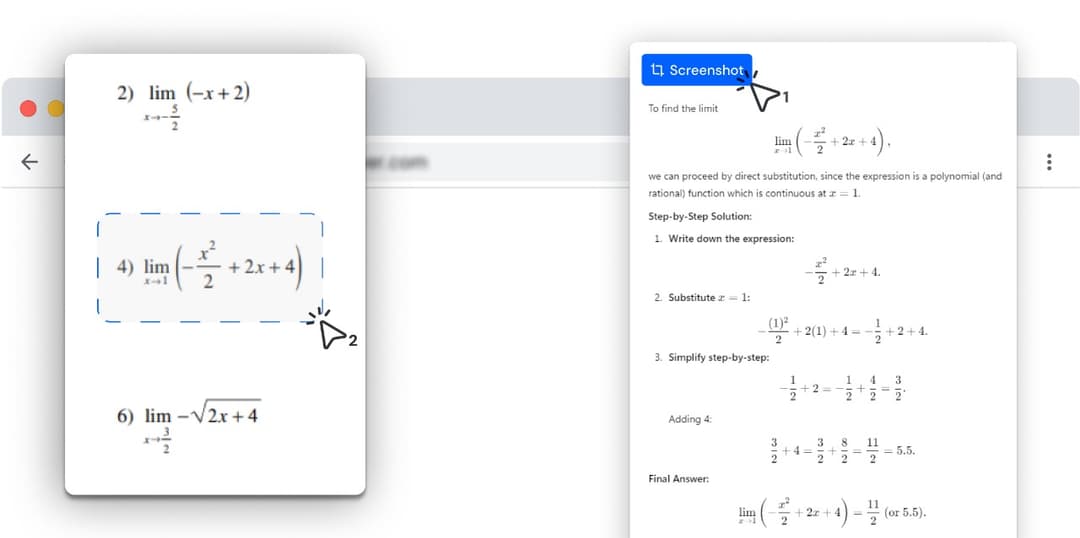
Mathway is a place you go with a problem. Photo Math Solver opens where the problem already is — drag a box around it in the tab you are reading, in any subject, and follow the method one step at a time.
- Mathway is a website and a pair of mobile apps, built around a maths keypad and a camera.
- This is a browser extension: the problem stays on your screen and the working appears next to it.
- It is not limited to maths — physics, chemistry, biology, history, anything you can put on screen.
- The working comes back typeset, one step per line, at a level of detail you change while you read it.
Photo Math Solver is a browser extension that reads a problem straight off the tab you already have open — a PDF, an online assignment, a lecture slide — and explains it a step at a time.
You drag a box around the question, and the method comes back named and typeset, one line per step, at a depth you turn up when you are lost and down when you are only checking yourself.
It works in a desktop Chromium browser, on any subject that shows up on the screen rather than mathematics alone.
Which one should you install?
Photo Math Solver is for
- Homework that is already open in a browser tab on a computer.
- Anything that appears on your screen, in any subject, not mathematics alone.
- Following a named method step by step, with the detail level under your control.
- Keeping the question, the working and the answer box on one screen.
Mathway is for
- Pointing a phone camera at a problem written on paper.
- Picking a topic-specific calculator from a large catalogue and working inside it.
- Studying away from a desk, on iOS or Android.
- Graphing and plotting, which Mathway includes alongside its solvers.
Photo Math Solver and Mathway, side by side
Both read a problem from an image and return step-by-step working. The rows below are where the two products are shaped differently.
| Photo Math Solver | Mathway | |
|---|---|---|
| Subjects it covers | Anything on screen — maths, physics, chemistry, biology, history | Mathematics |
| Where you use it | In the tab the problem is already in | On mathway.com, or in the mobile app |
| Explanation depth | Turn the detail up or down on the same problem as you read | A step-by-step format per calculator |
| How you give it a problem | Drag a box around it on any tab | Photograph it, upload it, or type it on a maths keypad |
| Step-by-step working | Method named, every step shown | Method named, every step shown |
| How the working is rendered | Typeset notation, one step per line, each step in plain language | Typeset notation with the steps expanded |
| Practice problems | Built from the problem you just solved | Worked examples inside each calculator |
| Problems written on paper | Photograph it, open the image in a tab, drag a box | Point the camera at it |
| Phone apps | Desktop browsers | iOS and Android |
| Best for | Understanding whatever is in front of you, whatever the subject | A maths calculator catalogue you can carry |
Try it on the problem you have open right now
Free to install, and it works on the tab you already have open. Drag a box around a problem and the working appears beside it.
What is different here
It is not only for mathematics
The box you drag does not care what is inside it. A titration question, a circuit diagram, a paragraph of a history source, a chart in a lecture PDF — snip it and get the same step-by-step treatment you get on a quadratic.
Nothing moves between windows
The question, the working and the box you type your answer into stay on one screen. Nothing is retyped on the way, which is where a surprising share of homework mistakes come from — a nested fraction restated slightly wrong is answered correctly and marked wrong.
Depth is a control, not a format
The same problem reads as four lines when you are checking your own answer and as a full walkthrough when you have no idea where to start. You change it while you are reading it.
The working is laid out to be read
Typeset notation rather than flattened plain text, one step per line rather than a paragraph, and a sentence saying what each step did. The point is that you can follow the method afterwards, not only see the result.
Practice comes out of your own problem
You factored this quadratic and got it wrong, so here are three more shaped like it, immediately, without going and finding the right calculator.
How it compares with the other solvers
Same format: prices, a feature table, and where the other tool wins.
- vs GauthPhoto Math Solver is a browser extension for homework that is already on a screen: draw a box around a question and it lays out the method, not only the answer.
- vs Question.AIPhoto Math Solver is a browser extension that turns anything you select on screen into a worked explanation — the method named, each step on its own line, in plain language.
- vs SymbolabPhoto Math Solver is a browser extension that explains whatever you drag a box around — an equation, a diagram, a chemistry question, a paragraph of history — step by step, in the tab you are already in.
- vs Wolfram|AlphaPhoto Math Solver is a browser extension that answers a problem exactly as it appears on your screen, without any part of it being retyped into an input box.
- vs ChatGPTPhoto Math Solver is a browser extension that explains one selected problem at a time, in the tab where you found it, without anything being pasted anywhere.
See all comparisons — including prices across every tool here.
What it can solve
Every subject below has its own page with formulas, worked examples and practice problems.
Frequently asked questions
Mathway is a product of its respective owner. Photo Math Solver is an independent product and is not affiliated with it.