
Photo Math Solver vs Question.AI
Question.AI is a study assistant that will do the task for you — write it, translate it, answer it. Photo Math Solver shows you how it was done: drag a box around anything on screen and follow the method one step at a time.
- Both work from a screenshot in a browser sidebar, and both cover more than mathematics.
- Question.AI is an all-round copilot: answering, writing, translating, summarising.
- This one is built around the explanation — the method named, one step per line, at a depth you set.
- It is a desktop browser extension, which is where online coursework and PDFs already are.
Photo Math Solver is a browser extension that turns anything you select on screen into a worked explanation — the method named, each step on its own line, in plain language.
You drag a box around a question in the tab you are reading it in, and change how much detail each step carries as you go.
It handles every subject that appears on screen, and runs in a desktop Chromium browser.
Which one should you install?
Photo Math Solver is for
- Understanding how a problem was solved, not only what the answer is.
- Following a named method step by step, with the detail level under your control.
- Notation that is awkward to retype — stacked fractions, matrices, scanned worksheets.
- Practising the thing you just got wrong, from problems built out of that question.
Question.AI is for
- Getting a task done — an essay drafted, a passage translated, a chapter summarised.
- Holding a conversation about a topic and asking follow-up questions in chat.
- Studying on a phone as well as at a desk, on iOS or Android.
- One assistant that spans coursework, writing and language work together.
Photo Math Solver and Question.AI, side by side
Both answer a screenshot in a browser sidebar. The rows below are where the two products are shaped differently.
| Photo Math Solver | Question.AI | |
|---|---|---|
| What you get back | The method, named, one step at a time | The completed answer, and a chat to ask about it |
| Explanation depth | Turn the detail up or down on the same problem as you read | Ask a follow-up question for more |
| How you give it a problem | Drag a box around it on any tab | Screenshot into the sidebar, or type into the chat |
| Where the answer appears | In place, over the page you are on | In place, in the sidebar |
| Subjects it covers | Anything on screen — maths, physics, chemistry, biology, history | Every school subject |
| How the working is rendered | Typeset notation, one step per line, each step in plain language | A written answer in the sidebar |
| Writing and translation | Not offered | Drafting, rewriting, translating and summarising |
| Practice problems | Built from the problem you just solved | Follow-up questions in the same conversation |
| Phone apps | Desktop browsers | iOS and Android |
| Best for | Understanding how the problem in front of you is solved | Getting a wide range of study tasks done |
Try it on the problem you have open right now
Free to install, and it works on the tab you already have open. Drag a box around a problem and the working appears beside it.
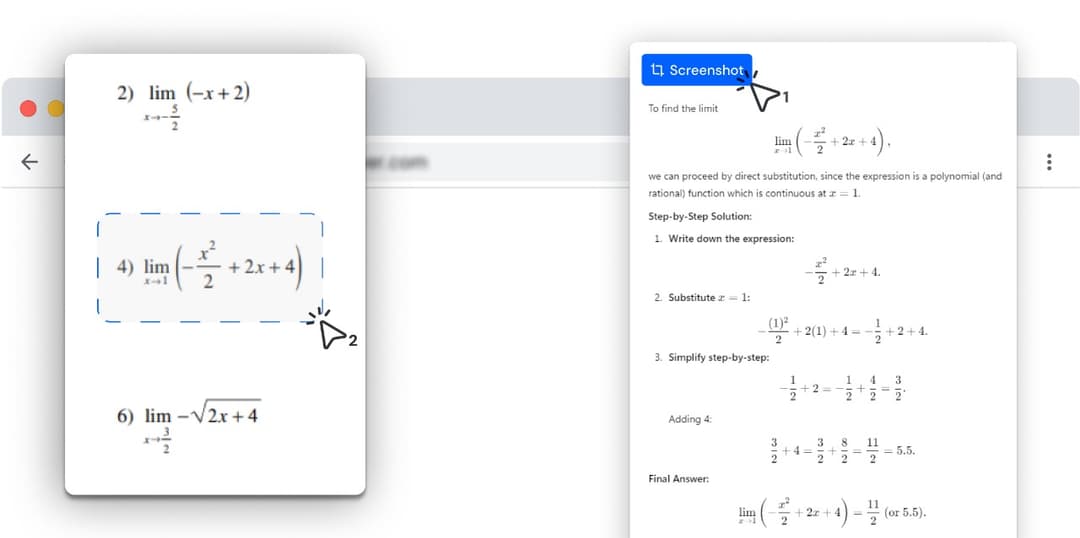
What is different here
The method is the product
The answer is the least interesting part of the output. What comes back is the route: the method named, each manipulation on its own line, and a sentence saying what that step did — so you can follow it again on the next question without asking anything.
Depth is a control, not a conversation
When an explanation does not land, the next move is a control rather than a follow-up question: the same problem, rendered concise or rendered in full, immediately, with nothing to retype.
The working is laid out to be read
Typeset notation rather than flattened plain text, one step per line rather than a paragraph. A stacked fraction looks like a stacked fraction, and a matrix keeps its shape.
Practice comes out of your own problem
You factored this quadratic and got it wrong, so here are three more shaped like it, immediately.
One thing, with nothing to navigate
Drag a box, read the method. There is no chat history to manage and no decision about which mode fits this particular question.
How it compares with the other solvers
Same format: prices, a feature table, and where the other tool wins.
- vs MathwayPhoto Math Solver is a browser extension that reads a problem straight off the tab you already have open — a PDF, an online assignment, a lecture slide — and explains it a step at a time.
- vs GauthPhoto Math Solver is a browser extension for homework that is already on a screen: draw a box around a question and it lays out the method, not only the answer.
- vs SymbolabPhoto Math Solver is a browser extension that explains whatever you drag a box around — an equation, a diagram, a chemistry question, a paragraph of history — step by step, in the tab you are already in.
- vs Wolfram|AlphaPhoto Math Solver is a browser extension that answers a problem exactly as it appears on your screen, without any part of it being retyped into an input box.
- vs ChatGPTPhoto Math Solver is a browser extension that explains one selected problem at a time, in the tab where you found it, without anything being pasted anywhere.
See all comparisons — including prices across every tool here.
What it can solve
Every subject below has its own page with formulas, worked examples and practice problems.
Frequently asked questions
Question.AI is a product of its respective owner. Photo Math Solver is an independent product and is not affiliated with it.